


Weblication® Panel
The Weblication® Panel appears on every page as long as you are logged into Weblication® CMS. It summarizes the most important tools for managing your website within easy reach. This is already integrated as standard in the Weblication® BASE project basis.
Depending on the user type, the BASE project version and the license scope, the panel offers you a different selection of functions. The panel can also be customized.
- Operation
- Panel for administrators
- Configuration / Layout
- Templates, source texts
- Dashboard
- Navigation
- Manage content
- Current page / Contents
- Global content
- Analysis
- Tools
- Page info
- Tasks / Notes
- Personal functions
- System
- Panel for care users
- Navigation
- Page / portal structure
- Current page / Contents
- Global content
- Analysis
- Tools
- Personal functions
Operation
Panel for administrators
Depending on the project and licensing, a user of the Administrator user type is provided with the following functions in the panel (example based on the current BASE project). By moving the mouse over the corresponding areas, they open up as a layer menu and allow access to the corresponding functions and buttons.

Weblication® Panel for administrators
 | Configuration, layout, templates and source texts |
| Dashboard | |
 | Navigation |
 | Manage content |
 | Page content and global content |
 | Analysis and tools |
| Page info | |
| Tasks / Notes | |
 | Personal functions and system |
The individual menu items of the layers are explained below.
Configuration / Layout

- Project configuration
Opens the general project configuration(variables). - Customize layout
In this area, you can prepare and configure the layout. - Customize CSS-only variants
In this area, you can view and customize the CSS-only variants. - Assign portal content
Opens the editing of the portal structure, which is mapped in the file
/yourcontentproject/wGlobal/content/contentPortal/default.php
.
You can define global content directly for the areas of a page (top, right, bottom, left and content area) and also assign portal content, e.g:- Navigation-dependent content for meta and main navigation
- Additional content for the respective page
- Content of the respective page
- Weblics®
Opens the Weblics® administration.
Templates, source texts

- CSS Stylesheets
Opens the editing of the central CSS file (design.css), which is located in the layout / design - CSS stylesheets directory. - HTML page template
Opens the editing of the view/editing template, which is stored in the templates directory for the layout (standard.wDocument.php). - XSLT Includes, Functions
Opens the editing of the global include file (includes.global.php), which is stored in the misc directory. - List templates
Opens the list template directory. - All templates
Opens the directory of templates for the display types (website, structural elements, edit masks, lists, navigations, etc.).
Dashboard
Opens the dashboard. Depending on the authorization, you will receive an overview of e.g:
- Update management
- News items
- Linked installations
- Server security check
- Users last logged in
- Projects
- Recently edited files
- My recently edited files
- My last used directories
- My files currently being edited
Navigation

- Edit meta navigation
Opens the editing of the meta navigation. - Edit main navigation
Opens the editing of the main navigation. - Manage navigations
Opens the navigation directory (navigation management).
Manage content
Opens the Weblication® file exporter.
Current page / Contents

- Edit
Opens the current page for editing. - Link in the navigation
Opens the navigation editing of the main navigation to include the current page in the navigation.
This button only appears for pages that are not yet linked in the main navigation. - Manage content
Opens the directory currently called up in the file explorer. - Create new pages
Opens the dialog for creating new files.
Global content

- Texts
Opens the editing of the editor texts, which contains the text modules for use in language-dependent templates. - Autolinks
Opens the editing of autolinks. - Abbreviations
Opens the editing of abbreviations. - Categories
Opens the directory of global category files. - Reusable content
Opens the directory of reusable content (e.g. /yourcontentproject/wGlobal/content/elements/). - Manage global content
Opens the directory of global content(/yourcontentproject/wGlobal/content/), which is used to manage abbreviations, autolinks, include files of the areas, reusable elements, error pages, navigations, texts, etc. - Manage images / assets
Opens the assets directory (e.g. /wAssets).
Analysis
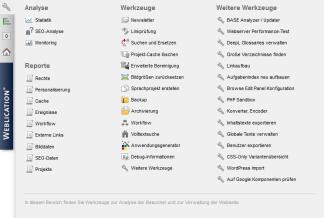
- Monitoring
Opens a new window for monitoring(blog article on monitoring). - Open Google™ Analytics
Opens the Google™ Analytics tool.
This button only appears if a Google™ Analytics ID is stored in the project configuration(variables). - Open PIWIK
Opens the PIWIK tool.
This button only appears if a path for PIWIK is stored in the project configuration(variables). - Click analysis
If one of the defined parameters is activated, the positions of the recorded mouse clicks of page visitors who are not logged in are displayed for the page.
This button only appears for pages for which the click analysis is activated via the metadata mask(file editing). The clicks from the current day, last week, previous week, last month and last year can be displayed as a time period. Delete click analysis data
By clicking on this button, you can irrevocably delete the data of the previous click analysis after confirmation. - Open Google™ Keyword Tool
Opens the Google™ Keyword Tool.
This button only appears if the Google™ Keyword Tool is activated for linking in the project configuration(variables). - Reports
Under "Reports" you can output a report for various properties. - Rights report
- Personalization report
- Cache report
- Click analysis report
Tools

- Newsletter
Opens the newsletter administration. - Linkchecker
Opens the linkchecker for the currently accessed content project.
This button only appears if the user has linkchecker authorization(user administration). - Search and replace
Opens the search and replace function for the content project currently called up.
This button only appears if the user is an administrator. - Clean up project
Offers the option of deleting the project cache directly or calling up the extended cleanup with further setting options. - Reset image sizes
Opens the screen for resetting the image sizes - Create language project
Opens the screen for copying a (language) project. - Backup
Opens the backup administration. - Archiving
Opens the archiving administration. - Full text search
Opens the administration of the full text search. - Application generator
Opens the application generator. - Debug information
Offers the option of calling up various debug functions (lists, navigations, generated images (thumbnails), CSS rendering).
Page info
Opens the page info.
Tasks / Notes
Opens the screen for tasks and notes.
Personal functions

- Select language project
You can use this selection box to choose between the available language projects and call up their respective start page.
This selection box only appears if the project has at least one language version. - Contact support
Opens a new e-mail via your e-mail client using a mailto link to open a support ticket. - Change password
Allows the currently logged-in user to change their password. - Simulate user
Clicking on this button opens a layer that can be used to open a new window by entering an existing user name or anonymously. In this way, you can quickly simulate another user or site visitor to check the corresponding view.
This button only appears if a"Domain for user simulation" is specified in the project configuration. - My documents
Clicking on this button opens a layer that allows the user to view their most recently edited files and files that are currently being edited.
The files are listed with date, time and file name. For each file, it is possible to call it up directly for preview and editing or to open the directory of the respective file. - Show buttons
If this parameter is activated, all Browse & Edit buttons on the current page are shown. Deactivating the checkbox hides the buttons. - [username] Log out
Click this button to log out as the currently logged in user. The user name of the currently logged in user is displayed for the button.
System

- Weblication® Backend
Opens the Weblication® CMS backend. - User administration
Opens the user administration. - Group/role administration
Opens the group administration and role administration. - Server information
Opens the server information. - System settings
Opens the system settings. - License management
Opens the license management. - Update administration
Opens the update administration.
If a newer version is available for update, this button is displayed in orange.
Panel for care users
Depending on the project and licensing, a user of the user type Maintenance user is provided with the following functions in the panel (example based on the current BASE project). By moving the mouse over the corresponding areas, they open up as a layer menu and allow access to the corresponding functions and buttons.

| Navigation / page/portal structure |
| Page content and global content |
| Analysis and tools |
| Personal functions and system |
The individual menu items of the layers are explained below.
Navigation

- Edit meta navigation
Opens the editing of the meta navigation. - Edit main navigation
Opens the editing of the main navigation. - Manage navigations
Opens the navigation directory (navigation management).
This button only appears if the maintenance user is authorized to view the directory.
Page / portal structure

- Assign portal content
Opens the editing of the portal structure, which is mapped in the file
/yourcontentproject/wGlobal/content/contentPortal/default.php
.
You can define global content directly for the areas of a page (top, right, bottom, left and content area) and also assign portal content, e.g: - Navigation-dependent content for meta and main navigation
- Additional content for the respective page
- Content of the respective page
Current page / Contents

- Edit
Opens the current page for editing.
This button only appears if the maintenance user is authorized to edit the file. - Link in the navigation
Opens the navigation editing of the main navigation to include the current page in the navigation.
This button only appears for pages that are not yet linked in the main navigation. - Manage content
Opens the directory currently called up in the file explorer.
This button only appears if the maintenance user has authorization to view within the directory. - Create new pages
Opens the dialog for creating new files.
This button only appears if the maintenance user has permission to create new files within the directory.
Global content

- Texts
Opens the editing of editor texts, which contains the text modules for use in language-dependent templates.
This button only appears if the maintenance user has authorization to edit the file. - Autolinks
Opens the editing of autolinks.
This button only appears if the maintenance user has authorization to edit the file. - Abbreviations
Opens the editing of abbreviations.
This button only appears if the maintenance user has authorization to edit the file. - Categories
Opens the directory of global category files.
This button only appears if the maintenance user has authorization to view within the directory. - Reusable content
Opens the directory of reusable content (e.g. /yourcontentproject/wGlobal/content/elements/).
This button only appears if the maintenance user has authorization to view within the directory. - Manage global content
Opens the global content directory(/yourcontentproject/wGlobal/content), which is used to manage abbreviations, autolinks, include files of the areas, reusable elements, error pages, navigations, texts, etc.
This button only appears if the maintenance user has authorization to view within the directory. - Manage images / assets
Opens the assets directory (e.g. /wAssets).
This button only appears if the maintenance user has authorization to view within the directory.
Analysis

- Monitoring
Opens a new window for monitoring(blog article on monitoring).
This button only appears if the user has linkchecker authorization(user administration). - Click analysis
If one of the defined parameters is activated, the positions of the recorded mouse clicks of page visitors who are not logged in are displayed for the page.
This button only appears for pages for which the click analysis is activated via the metadata mask(file editing). The clicks from the current day, last week, previous week and last month can be displayed as a time period. Delete click analysis data
By clicking on this button, you can irrevocably delete the data of the previous click analysis after confirmation. - Open Google™ Keyword Tool
Opens the Google™ Keyword Tool.
Tools

- Newsletter
Opens the newsletter administration.
This button only appears if the maintenance user has authorization to view within the directory. - Linkchecker
Opens the linkchecker for the currently accessed content project.
This button only appears if the user has linkchecker authorization(user administration). - Archiving
Opens the archiving administration.
This button only appears if the user is authorized to archive(user administration).
Personal functions

- Select language project
You can use this selection box to choose between the existing language projects and call up their respective start page.
This selection box only appears if the project has at least one language version. - My documents
Clicking on this button opens a layer that allows the user to view their most recently edited files and files that are currently being edited.
The files are listed with date, time and file name. For each file, it is possible to call it up directly for preview and editing or to open the directory of the respective file. - User administration
Opens the user administration.
This button only appears if the user has authorization to edit other maintenance users(User administration (authorizations)). - Change password
Allows the user currently logged in to change their password. - Show buttons
If this parameter is activated, all Browse & Edit buttons on the current page are shown. Deactivating the checkbox hides the buttons. - [username] Logout
Click on this button to log out as the currently logged in user. The user name of the currently logged in user is displayed for the button.
Please note
- Did you know that you can customize and extend the Weblication® Panel?